Showing posts with label fonts. Show all posts
Showing posts with label fonts. Show all posts
Thursday, May 18, 2017
CORBY2 Fonts Hearts
CORBY2 Fonts Hearts

* Enjoy New Fonts
* Heart Fonts
* Font by Anonymous
* Extra Tags
* Corby 2 Downloads
* Corby 2 Fonts
* Corby 2 Font Downloads
* Samsung GT-S3850 Fonts
* Samsung GT-S3850 Font Downloads
Things needed:
* Font
* Tk File Explorer
* Samsung USB Driver ( if you dont have one )
* USB Cable
How to Install this Font.
1. Download the Font and TK File Explorer : http://adf.ly/mtADL
Before proceeding, You should Disable MTP Screen Block.
Dial *#6870 to disable MTP Screen Block.
2. Extract the Files. Password is corbysociety. You should see a folder with the font and TK file explorer inside on it. Launch TK File Explorer.
3. Connect your phone ( Corby 2 ).
4. Find out what port you should enter in TK File Explorer.
Method #1
Using your keyboard, press the Windows logo+R (not CTRL+R) then type devmgmt.msc hit enter and the Device Manager window should appear. Click "Modems" and right click SAMSUNG Mobile USB Modem. Select Properties. Click the Modem tab and you will see your Port number. Take note of that.
Method #2
Using Multiloader v5.65, you can also know what your port number is using. Download Multiloader v5.65 here. Launch Multiloader and then connect your phone in "Download Mode" in your computer. Now click "Port Search" you should see what your port number is.
5. Go back to TK File Explorer and Click the "Settings icon". Enter your Port number and then click "Ok".

6. Now click "Connect".
7. Double click AppEx. You will see three folders inside namely Sys, SysDefault and User.
Double click User. You will see three folders inside it namely Font, Java and Widget.
Double click Font. Double click Download. You will see that the Download folder is EMPTY.


NOTE: When copying fonts that are over 2mb in size, like those that were provided by Himanshu Pathak in his video tutorial, TK File Explorer may stop responding for a while and its normal. You dont need to do anything but wait because it is still copying. Dont click anything til it finishes.


Note: Re-enable your MTP Block Screen by dialing *#6870
Special thanks to Corby2Mods Source: Corby2Mods
Go to link Download

Saturday, December 31, 2016
Configure Qt5 Application Style Icons Fonts And More With Qt5ct
Configure Qt5 Application Style Icons Fonts And More With Qt5ct
Unlike Qt4, Qt5 doesnt come with a configuration tool to allow setting the icon theme, fonts or the style and instead, it tries to use the settings from the running desktop environment.
This works well for KDE and GNOME (as well as Unity) but you may encounter issues under other desktop environments such as Xfce, Cinnamon, MATE and others (Im not sure what Qt5 versions are affected by this, but it seems to be fixed in the latest Qt 5.5.1 according to THIS comment).
Heres an example (Audacious 3.7 using the Qt5 interface under Linux Mint 17.2 with Cinnamon):
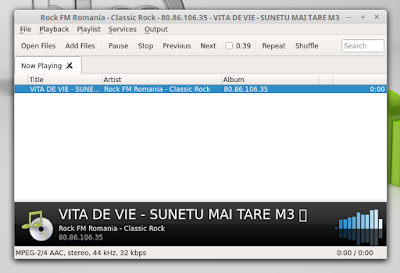
Instead of "Open Files", "Add Files" and so on, Audacious should have icons. The app is also not using the GTK+ Qt5 style.
To force the Qt5 style or icon theme, you can use an application called Qt5ct (Qt5 Configuration Tool). Besides the style and icons, Qt5ct can also be used to change various other Qt5 settings, such as fonts, add custom style sheets and tweak other interface settings such as the double click interval, enable icons in menus and dialog buttons and more:
To force the Qt5 style or icon theme, you can use an application called Qt5ct (Qt5 Configuration Tool). Besides the style and icons, Qt5ct can also be used to change various other Qt5 settings, such as fonts, add custom style sheets and tweak other interface settings such as the double click interval, enable icons in menus and dialog buttons and more:
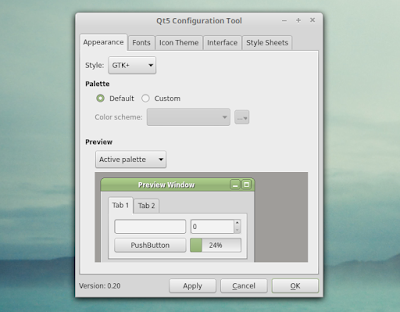
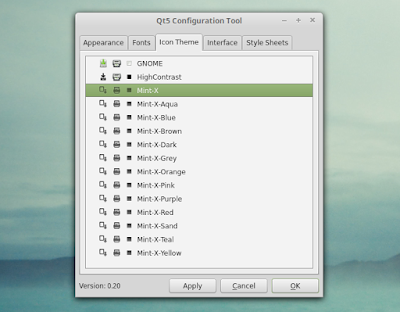
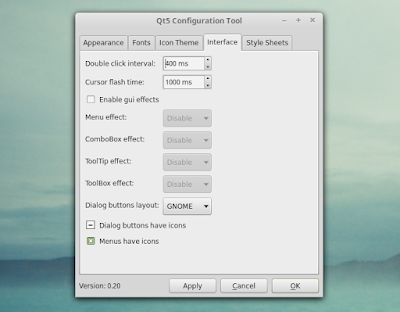
Heres another Audacious 3.7 Qt5 interface screenshot taken under Linux Mint 17.2 Cinnamon, after using Qt5 Configuration Tool to set the icon theme to Mint-X and the style to GTK+:
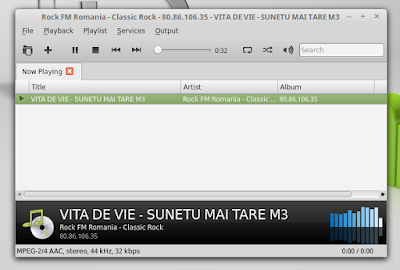
To make it easier to install Qt5ct for Ubuntu and Linux Mint (and derivatives) users, Ive uploaded the latest version in the main WebUpd8 PPA. I didnt package the application and instead, Ive used the packaging from THIS PPA. I decided rebuild the packages because that PPA comes with an older version and the packages are only tested for Ubuntu 14.04 (and in my test, the Ubuntu 15.04 and 15.10 packages werent installable). So the packaging credits go to "hda_launchpad".
Install and configure Qt5 Configuration Tool in Ubuntu or Linux Mint
1. To add the main WebUpd8 PPA and install the latest Qt5 Configuration Tool (Qt5ct) in Ubuntu 16.04, 15.10, 15.04 or 14.04 / Linux Mint 18 or 17.x and derivatives, use the following commands:
sudo add-apt-repository ppa:nilarimogard/webupd8
sudo apt-get update
sudo apt-get install qt5ct
If you dont want to add the PPA, you can download the DEB from HERE (but you wont receive any updates unless you add the PPA).
Arch Linux users can install Qt5ct from the Community repository. For other Linux distributions, you can download Qt5ct from SourceForge.
2. Once installed, theres one more step you need to follow or else the settings you apply using Qt5ct wont be applied - you need to open ~/.profile with a text editor (".profile" is a hidden file in your home directory so use CTRL + H to show hidden files) and at the bottom of this file, add the following line:
export QT_QPA_PLATFORMTHEME="qt5ct"Then, save the file, log out and after you login you can use Qt5 Configuration Tool to change the Qt5 style, icon theme and so on.
Youll need to restart any Qt5 applications that were running to see the changes.
If later on you want to revert the changes, simply remove the "export QT_QPA_PLATFORMTHEME=qt5ct" line from your ~/.profile file and restart your session (logout).
Notes:
If later on you want to revert the changes, simply remove the "export QT_QPA_PLATFORMTHEME=qt5ct" line from your ~/.profile file and restart your session (logout).
Notes:
- Ive tried adding this in Lubuntu 15.10 (uses LXDE) to ~/.profile, ~/.xsessionrc as well as /etc/environment and it didnt work for some reason (but exporting it using a terminal and then running a Qt5 app works, so the Qt5ct application works properly). If you find a way to get this to work in Lubuntu, let us know in the comments!
- Using Qt5ct breaks the `Albert` user interface (probably because Albert tries to use the theme specified by Qt5ct).
via Arch Wiki

Go to link Download
Subscribe to:
Posts (Atom)